Queues and Review
Guida workspaces include persistent queues for browser-backed automation. The queue UI now has two distinct jobs:
- Queues pane — a lightweight launcher and status surface inside the main window.
- Queue Console — the main operator surface for queue management, worker control, item inspection, bulk triage, and ledger links.
- Review mode — a view-driven human review workflow for queue items that need approval or rejection in browser tabs.
Queues pane
Section titled “Queues pane”The Queues pane is intentionally compact. Use it to check a queue quickly and open the full console when you need to operate on real work.
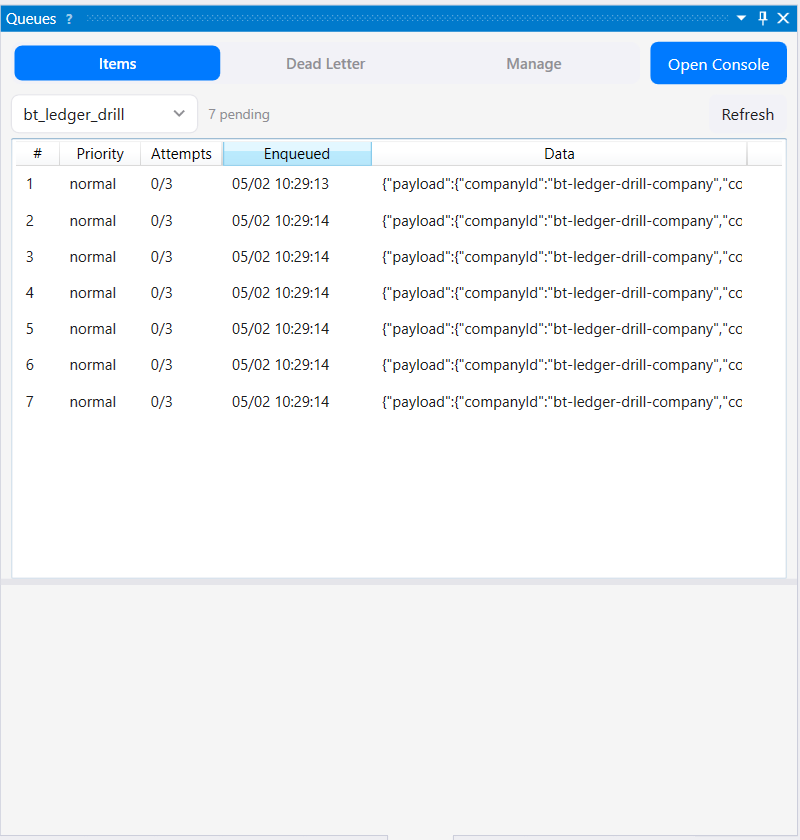
The compact pane is a status and launcher surface, not the main place for large queue cleanup.
Queue Console
Section titled “Queue Console”The Queue Console is the operator UI for queues. It shows queue counts, pending and dead-letter items, worker state, selected payload details, and actions such as run one, start worker, stop worker, retry, dead-letter, delete, and ledger navigation.
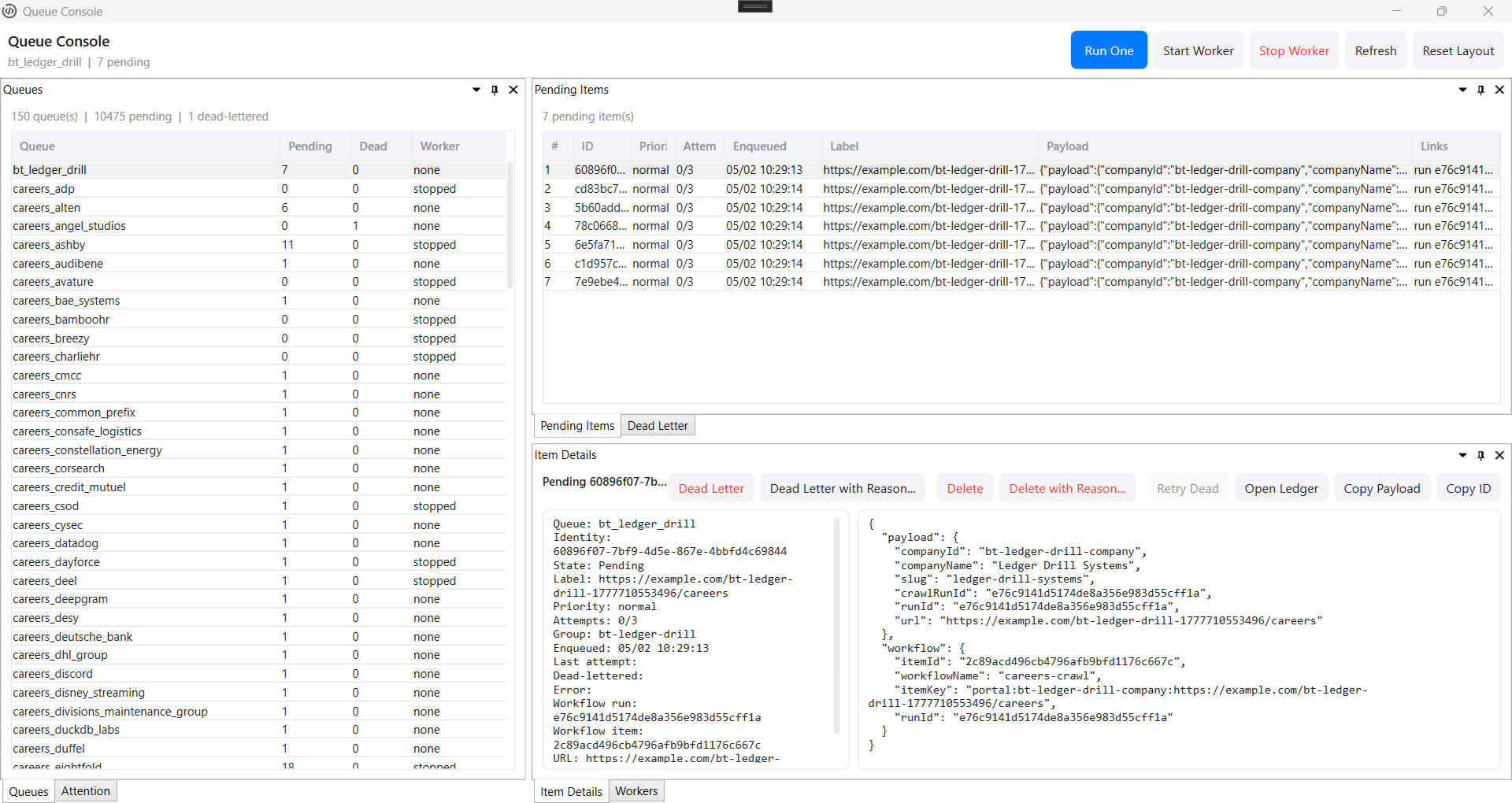
The Queue Console keeps executable queue work visible and separate from durable workflow ledger truth.
Use the Queue Console when you need to:
- See all queues and their pending/dead-letter counts.
- Inspect pending item payloads without opening raw database files.
- Run one item or start/stop a configured worker.
- Retry dead-letter items.
- Dead-letter or delete selected pending items.
- Bulk-triage bad queue items.
- Open the linked Workflow Ledger item when the queue payload contains ledger metadata.
Queue rows surface the best available human label from payload fields such as title, linkText, label, or jobTitle, then fall back to URL or item key. If old payloads lack those labels, the recommended path is cleanup and regeneration from corrected workers rather than hiding the problem with UI-only guessing.
Bounded deletion
Section titled “Bounded deletion”Remote deletion is deliberately exact and previewed. queues.items.delete.preview takes a queue name, one stable pending-item ID, and an operator reason. Its result identifies the item, current counts, whether deletion is allowed, a confirmation prompt, and a short-lived previewHash. Only then can queues.items.delete submit the same queue name, item ID, reason, and preview hash with confirm: true.
The mutation deletes one pending item; it is not a wildcard or bulk purge. A stale preview or changed item state is a conflict, and Remote Ops policy can still deny the action. Retrying a dead-letter item is a separate recovery decision.
Queue Processor review mode
Section titled “Queue Processor review mode”Review mode remains useful when each queue item needs human judgement. Define columns, action buttons, and keyboard shortcuts in a JSON view file, then review items in a grid or in multiple browser tabs.
Create a JSON file in workspace/views/ such as views/review.json:
{ "defaultQueue": "pending-reviews", "onSelect": "scripts/on-select.js", "columns": [ { "field": "title", "header": "Title" }, { "field": "url", "header": "URL" }, { "field": "date", "header": "Date", "type": "date", "format": "yyyy-MM-dd" } ], "actions": [ { "label": "Approve", "key": "A", "color": "#4CAF50", "script": "scripts/approve.js", "effect": "next" }, { "label": "Reject", "key": "R", "color": "#F44336", "script": "scripts/reject.js", "effect": "remove" }, { "label": "Skip", "key": "S", "effect": "next" } ]}Column properties
Section titled “Column properties”| Property | Required | Description |
|---|---|---|
field | Yes | JSON field name from the queue item data |
header | No | Column header text, defaulting to the field name |
type | No | text (default), date, or checkbox |
format | No | Date format string if type is date |
Action properties
Section titled “Action properties”| Property | Required | Description |
|---|---|---|
label | Yes | Button text |
key | No | Keyboard shortcut, such as A, Enter, or Space |
color | No | Button color as hex or CSS color name |
script | No | Script to run when clicked, relative to the workspace root or view file |
effect | No | next, remove, or stay |
Grid mode
Section titled “Grid mode”Grid mode is useful for one-at-a-time review:
- Select a view and queue.
- Click Start.
- Select an item in the grid.
- Click an action button or press its keyboard shortcut.
- The action script runs, then the configured effect advances, removes, or keeps the item.
Action scripts receive context through g.worker.getContext():
// @require-contextasync function main() {  const ctx = g.worker.getContext();  const item = ctx.item;
  g.store.put("approved", item.id, item.data);  g.log("Approved: " + item.data.title);}
Multi-tab review mode
Section titled “Multi-tab review mode”Review mode can open multiple queue items in browser tabs simultaneously. When you act on an item, the next item loads into the same tab.
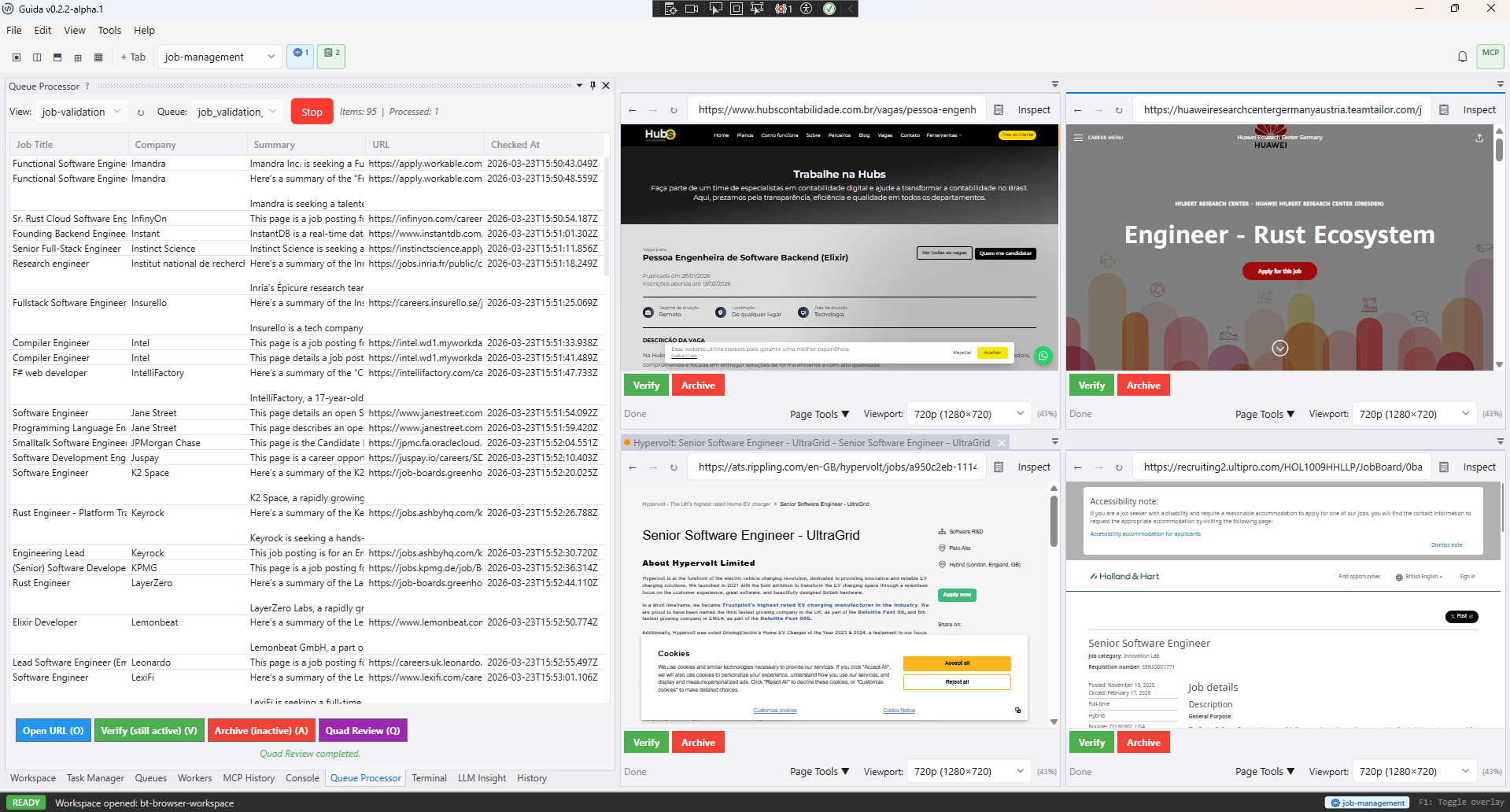
Quad review mode keeps multiple queue items visible while action scripts handle the selected decision.
Add a review block to your view config:
{ "defaultQueue": "pending-reviews", "review": { "tabs": 4, "layout": "quad", "viewport": "Full HD", "urlField": "url", "tabName": "{companyName}: {title}", "buttons": [ { "label": "Approve", "color": "#4CAF50", "script": "scripts/approve.js" }, { "label": "Reject", "color": "#F44336", "script": "scripts/reject.js" } ] }, "columns": [ { "field": "title", "header": "Title" }, { "field": "companyName", "header": "Company" } ]}Review properties
Section titled “Review properties”| Property | Default | Description |
|---|---|---|
tabs | 4 | Number of browser tabs to open simultaneously |
layout | "quad" | Tab arrangement: quad, horizontal, or vertical |
viewport | — | Viewport preset name, such as 720p or Full HD |
urlField | "url" | Field in item data containing the URL to navigate |
tabName | — | Tab name template with {fieldName} placeholders |
buttons | — | Action buttons displayed in each tab’s action bar |
Queue and ledger linkage
Section titled “Queue and ledger linkage”Queue items are executable work. Workflow ledger items are durable workflow truth. When a queue payload includes a workflow envelope with run and item IDs, Guida can link the queue item to the Workflow Ledger Console.
This matters for recovery. Retrying a ledger item alone does not necessarily create executable queue work. When enough queue metadata was recorded, Requeue and Retry can create queue work and move the ledger item back to a claimable state. If metadata is missing, Guida should show a clear recovery message rather than silently creating doomed work.
When the question is broader than one queue, use the Workflow Control Console. It can group related queues, worker pools, ledger stages, modules, and handoffs under the operation they belong to, then open this console on the queue evidence that needs action.
The @require-context pragma
Section titled “The @require-context pragma”Scripts that call g.worker.getContext() should use // @require-context at the top. If the script is run outside a worker or review context, it fails immediately with a clear error.
// @require-context
async function main() {  const ctx = g.worker.getContext();  // ...}
Workflow-scoped views
Section titled “Workflow-scoped views”Views can be scoped to a workflow by placing them in workflows/my-workflow/views/ instead of the workspace root views/ folder. Workflow-scoped views appear only when that workflow is active.
Next steps
Section titled “Next steps”- Queue Workers — process items in parallel with concurrent browser tabs
- Workflow Ledger — inspect durable workflow state and recovery history
- Workflows — group queues, workers, modules, and handoffs into operator-level operations
- API Reference —
g.queue.*— queue operations - Workspaces — workspace setup for views and scripts