Workflow Ledger
The workflow ledger records durable state for long-running automation workflows. It answers operational questions that a console log cannot answer reliably:
- Which run is active?
- Which items are queued, running, completed, skipped, retry-ready, cancelled, failed, or dead?
- Which item has an expired lease?
- What event history led to the current state?
- Which queue item is linked to this workflow item?
- Can this item be retried, requeued, cancelled, or dead-lettered?
Ledger concepts
Section titled “Ledger concepts”| Concept | Meaning |
|---|---|
| Run | One execution of a workflow, with status, source, start/end timestamps, metadata, and error state |
| Item | A unit of durable workflow work, such as a portal, URL, document, or record |
| Stage | The workflow step the item belongs to, such as discovery, fetch, parse, or review |
| State | The item status inside its stage, such as queued, running, completed, retry-ready, dead, or cancelled |
| Event | An append-only history entry explaining what happened to a run or item |
| Artifact | A linked output or evidence reference, such as a snapshot, listing, file, or search document |
| Lease | A worker claim that marks an item as running until a deadline |
States and stages are workflow-defined strings, not hard-coded product concepts. The ledger is generic enough for many workflows, while each workflow can supply display metadata to make items readable.
Workflow Ledger pane
Section titled “Workflow Ledger pane”The main-window Workflow Ledger pane is a compact status and launcher surface. It shows run counts, item counts, attention counts, and a short run list.
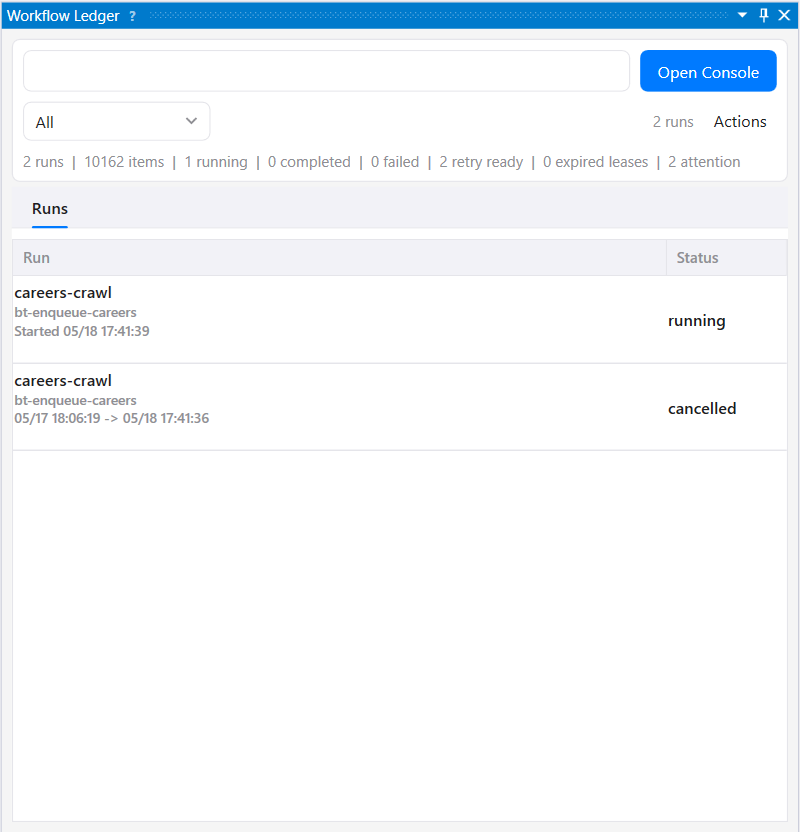
The pane is intentionally lightweight. Use it to check status and open the full console.
Workflow Ledger Console
Section titled “Workflow Ledger Console”The Workflow Ledger Console is the main operator UI. It opens in its own window and uses dedicated panes for runs, selected-run items, item details, events, artifacts, metadata, recovery state, and graph/debug views.
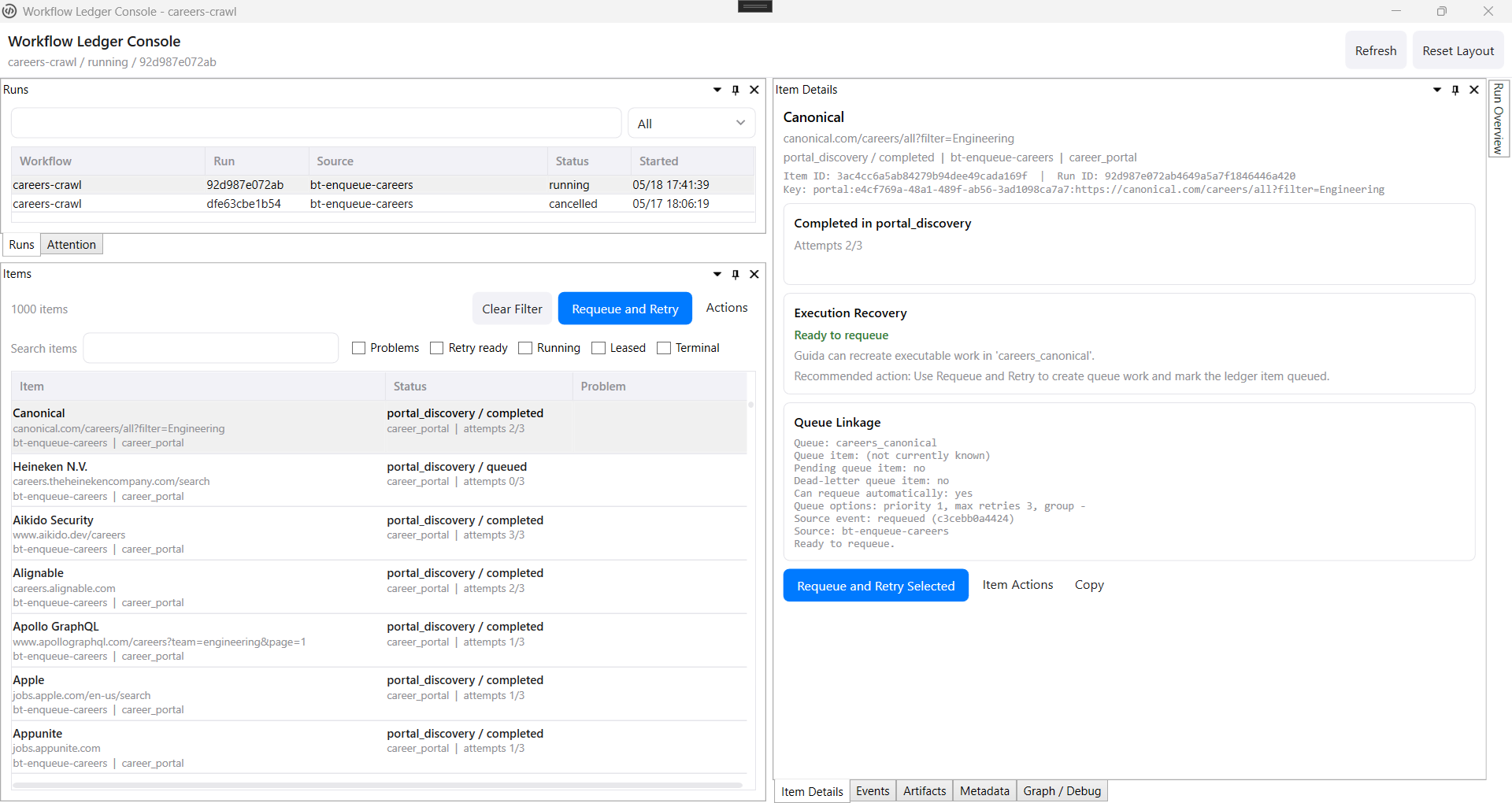
The console is for serious run management and item recovery, not just observing logs.
Use it to:
- Manage runs and inspect selected-run state.
- Search and filter items by text and operational status.
- Page through large item sets without loading an entire run into the UI.
- Read stage/state counts computed over the whole selected run, not just the visible item page.
- Select one or many items for retry, cancellation, dead-lettering, or queue recovery.
- Inspect item details, raw IDs, item keys, attempts, lease state, errors, and metadata.
- Follow item timelines through events and artifacts.
- See whether a ledger item has enough queue metadata to be requeued.
- Copy item payloads, IDs, and diagnostic details.
Large runs and paging
Section titled “Large runs and paging”The console is designed for runs with thousands of items. The Items pane uses server-side paging with bounded page sizes, while summaries and the stage/state matrix use repository aggregate queries across the full selected run.
This distinction matters: virtualization only controls rendering, while paging and aggregates control correctness and database load. A page may show 250 rows, but run totals, stage/state counts, retry-ready counts, lease counts, and attention summaries are computed from repository truth.
Quick filters such as Problems, Retry Ready, Running, Leased, and Terminal are applied server-side for the paged item list.
Retry vocabulary
Section titled “Retry vocabulary”Guida separates durable ledger state from executable queue work:
- Mark Retry Ready changes ledger state so the item is claimable by workflow logic. It does not create queue work by itself.
- Requeue and Retry creates executable queue work when the ledger item has recorded queue metadata, then moves the ledger item back to a claimable state.
If queue metadata is missing, Guida should show an operator-facing recovery message. The usual fix is to regenerate the item by rerunning the source worker or enqueueing a corrected queue item, not to guess the old payload.
Queue linkage
Section titled “Queue linkage”Queue items can include a workflow envelope:
{ "workflow": { "workflowName": "careers-crawl", "runId": "abc123", "itemId": "def456", "itemKey": "portal:example" }}When this metadata is present, the Queue Console can open the related ledger item, and the Workflow Ledger Console can explain whether executable queue work exists for an item.
Display metadata
Section titled “Display metadata”Workflows can define item presentation with workflow-ledger.display.json beside workflow-ledger.schema.json. Display rules let a workflow choose labels, subtitles, and context fields from item fields or metadata without hard-coding domain-specific UI into Guida.
The raw item key, item ID, run ID, metadata, events, and artifacts remain available in details and copy actions even when a workflow provides human-friendly labels.
Attention and recovery
Section titled “Attention and recovery”The console surfaces selected-run attention, such as:
- expired leases
- retry-ready items
- dead or failed items
- queue linkage problems
- items that cannot be requeued automatically
Cross-run attention belongs in run-management views. Selected-run operation should stay scoped to the selected run so an operator is not distracted by unrelated failures.
Run reconciliation
Section titled “Run reconciliation”Workflow Ledger MCP tools and the Operational Dashboard API include compact reconciliation rollups for a selected run. These are useful for pipeline checks such as fetch-to-parse handoff:
- fetch processed, skipped, dead, retry-ready, running, and leased counts
- parse/index queued and completed counts
- full stage/state grouped counts
These rollups are intended for operational diagnosis and remote agents. They do not replace the console, but they give scripts and MCP clients a bounded way to answer “where did the work go?”
Semantic pipelines create an explicit
relationship to a workflow run and record stage state, dependencies,
deduplication, output references, and downstream outcomes. Reconciliation uses
those durable facts. A pipeline preview, an empty queue, or a stopped worker
pool does not by itself establish a successful run; use ledger.run.reconcile
or the focused reconciliation views to account for terminal and non-terminal
items.
For workspaces with many crawler workflows, use the Workflow Control Console to group ledger stages, queues, modules, and handoffs into operator-level operations. Use the Workflow Ledger Console when you need the detailed item truth behind one of those operation rows.
Next steps
Section titled “Next steps”- Queues and Review — operate executable queue work
- Queue Workers — run queue-backed workers
- Workflow Control Console — model operations, workflow maps, modules, and handoffs
- Operational Dashboard API — monitor run counts, queues, workers, failures, attention, and reconciliation over read-only HTTP/SSE
- Workflows — organize workspace automation into workflow folders